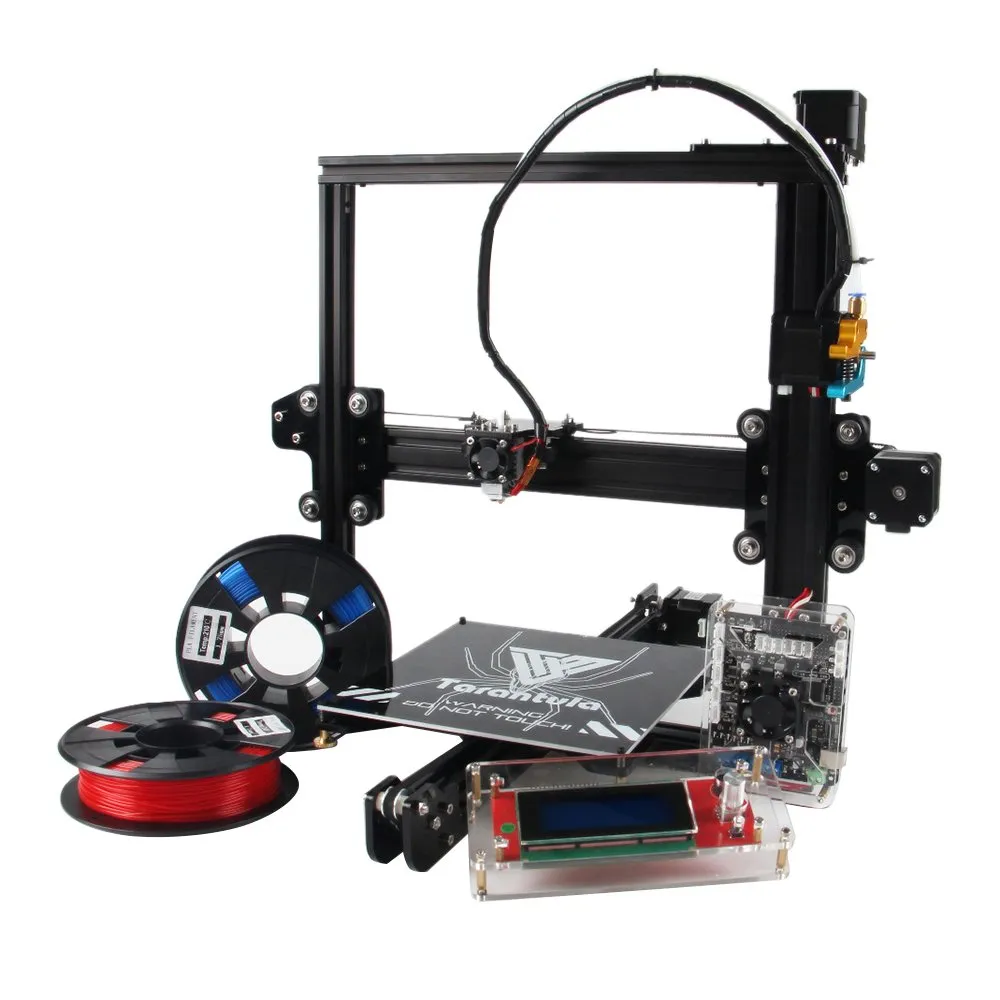
Why Klipper for Your Tevo Tarantula
The Tevo Tarantula is a popular and affordable 3D printer, but its performance can be significantly enhanced with Klipper firmware. Klipper is an open-source 3D printer firmware that offers several advantages over the traditional Marlin firmware, including faster print speeds, improved print quality, and remote control capabilities. Upgrading to Klipper can breathe new life into your Tevo Tarantula, making it a more efficient and enjoyable machine to use. This guide will walk you through the top 5 tips to get the most out of Klipper on your Tevo Tarantula, ensuring a smoother and more rewarding 3D printing experience. Explore the benefits of Klipper and elevate your printing game.
Benefits of Klipper Over Marlin
Switching from Marlin to Klipper can dramatically improve your Tevo Tarantula’s capabilities. Marlin, while functional, is limited by the processing power of the 8-bit or 32-bit control board. Klipper, on the other hand, offloads much of the processing to a more powerful host device like a Raspberry Pi. This architectural difference leads to several advantages. Klipper provides more precise control over the printer’s movements, allowing for more complex and detailed prints. Moreover, the advanced features such as pressure advance and input shaping are unavailable on Marlin and provides much improved prints. Choosing Klipper unlocks a new level of performance for your printer and improves the print quality.
Faster Print Speeds

One of the most noticeable benefits of Klipper is the potential for significantly faster print speeds. By leveraging the processing power of an external device, Klipper can handle complex calculations and motion planning more efficiently. This allows your Tevo Tarantula to move its print head and bed more rapidly without sacrificing print quality. The faster speeds mean you can complete your 3D printing projects in less time, increasing your overall productivity and reducing the waiting time for each print. Remember to tune acceleration and jerk settings in the printer.cfg file, and incrementally increase print speeds to maintain print quality.
Improved Print Quality
Beyond speed, Klipper also contributes to better print quality. Features like pressure advance and input shaping helps to minimize ringing and other artifacts. These features result in sharper corners, cleaner lines, and overall more refined prints. Klipper’s ability to finely control the printer’s movements ensures that each layer is accurately placed, leading to a higher level of detail and a more professional-looking finished product. Careful calibration and tuning, along with the use of high-quality filaments, will further enhance the improvements in print quality that Klipper provides.
Remote Control and Monitoring
Klipper allows for remote control and monitoring of your Tevo Tarantula. With Klipper, you can start, stop, and monitor your prints from any device connected to your network. This feature is invaluable for those who want to keep an eye on their prints without being physically present. You can monitor temperatures, view webcam streams, and even make adjustments to the print settings remotely. This level of control and accessibility makes 3D printing more convenient and user-friendly. You can monitor print progress from anywhere and receive notifications on your phone, providing peace of mind and increased flexibility.
Easier Configuration and Tuning

Klipper simplifies the process of configuration and tuning your 3D printer. The configuration is done through a printer.cfg file, which is easy to edit and modify. You can adjust various settings, such as stepper motor current, endstop positions, and acceleration limits, without having to recompile firmware. The extensive documentation and active community support also make troubleshooting and optimizing your printer’s performance much easier. The configuration file structure is more straightforward than Marlin, which makes it easier to customize and fine-tune your printer’s behavior to match your specific needs.
Top 5 Klipper Tips for Tevo Tarantula
Tip 1 Bed Leveling
Proper bed leveling is crucial for successful 3D printing, especially with Klipper. A well-leveled bed ensures that the first layer adheres properly, preventing warping and other print defects. It’s very important to ensure that the nozzle is the correct distance from the bed across the entire print surface. Klipper’s bed leveling capabilities, including mesh bed leveling, can compensate for any imperfections in your bed. The process involves creating a mesh of the bed’s surface and adjusting the nozzle height dynamically during printing. This provides the ideal first layer adhesion and print quality.
Importance of Proper Bed Leveling

Bed leveling is the foundation of a good 3D print. If the bed is not level, the nozzle may be too far or too close to the bed, leading to poor adhesion, warping, or even nozzle crashes. With Klipper, you can use a variety of bed leveling methods. These methods include manual bed leveling or auto bed leveling using probes like BLTouch. Properly leveling your bed with Klipper is essential for a smooth printing experience and quality results. Ensure that the first layer is consistent and well-adhered for the best results.
Using a BLTouch or Other Probe
Using a BLTouch or other bed leveling probe automates the bed leveling process. These probes accurately measure the distance between the nozzle and the bed at multiple points, creating a mesh of the bed’s surface. Klipper uses this mesh to compensate for any unevenness during printing. The BLTouch or other probe simplifies setup and ensures consistent results with every print. To set up a BLTouch, you’ll need to connect it to your printer’s control board and configure the printer.cfg file. You will need to set the correct probe offsets, and then follow the documentation to enable bed leveling and run the probe calibration routine. Once configured, the BLTouch automates bed leveling before each print.
Tip 2 Firmware Configuration
The printer.cfg file is the heart of your Klipper setup. This text file contains all the configuration settings for your printer, including the printer’s hardware, firmware settings, and calibration parameters. The printer.cfg file replaces the need to recompile firmware every time you want to make changes to settings. Understanding how to edit the printer.cfg file is crucial for customizing and optimizing your Tevo Tarantula. Take the time to study the various sections and parameters within the file, and make sure to back up your configuration before making any changes.
Understanding the Printer.cfg File

The printer.cfg file is structured into sections, each defining different aspects of your printer, such as the stepper motors, endstops, thermistors, and more. Each section contains parameters that configure the specific hardware component. For example, the [stepper_x] section defines the settings for the X-axis stepper motor, including the step_distance, endstop pin, and maximum speed. The [extruder] section defines the settings for the extruder, including the heater, thermistor, and the extruder motor. By carefully reviewing and editing this file, you can precisely configure your printer’s behavior.
Configuring Stepper Motors and Endstops
Configuring the stepper motors and endstops is critical for accurate printing. In the printer.cfg file, you’ll need to define the step_distance for each stepper motor. This value determines the distance the motor moves per step, which directly affects the accuracy of your prints. You’ll also need to configure the endstops, which tell the printer when it has reached the end of a movement axis. Proper endstop configuration ensures that the printer knows its boundaries. Incorrect settings can lead to the printer running into its frame and causing damage. Ensuring that the steps are set up right is a critical part of setting up your printer.
Tip 3 Tuning Your Printer
Tuning your printer is essential for achieving optimal print quality and speed. Tuning involves calibrating various parameters to ensure your printer is performing at its best. Klipper offers a range of features that make the tuning process easier and more effective. Adjusting the settings such as acceleration, jerk, and extrusion multiplier. Proper tuning can dramatically improve the quality of your prints and reduce print times. Tuning can be a continuous process, and you should always make small adjustments and test them. Remember to save your configuration changes after each calibration.
Calibrating Extrusion Multiplier

Calibrating the extrusion multiplier is essential for ensuring that your printer is extruding the correct amount of filament. If the extrusion multiplier is too low, your prints may have gaps and weak layers. If it’s too high, you may experience over-extrusion, which leads to blobs and stringing. To calibrate the extrusion multiplier, you can use a calibration print and measure the amount of filament extruded. This allows you to fine-tune the setting in your printer.cfg file. The process of extrusion calibration is a critical step to ensure that your printer lays down the right amount of material. It is also important to measure and adjust your settings with the specific filament you are using.
Optimizing Acceleration and Jerk
Optimizing acceleration and jerk settings can significantly improve print speed and quality. Acceleration determines how quickly the printer can speed up and slow down its movements, while jerk controls the abruptness of those movements. By increasing acceleration and jerk values, you can speed up your print times. However, if these values are too high, you may see ringing and other artifacts. The correct settings will depend on your printer’s hardware and the types of prints you’re making. You should incrementally increase acceleration and jerk values. You also must monitor the print quality to avoid any negative effects. Fine-tuning these parameters can have a big impact on your printer’s performance.
Tip 4 Slicer Settings
Your slicer settings play a critical role in the final print quality. Your slicer software translates 3D models into G-code instructions that your printer understands. There are many slicer settings to tune to optimize your printing process. Proper configuration will ensure that your printer is receiving the correct instructions. Using the right slicer settings will work together to provide the desired results. Experimenting with different settings, such as layer height, infill density, and print speed. Remember to create profiles for different filaments and print types.
Choosing the Right Slicer (e.g., PrusaSlicer, Cura)

Several slicer software options are available, each with its strengths and weaknesses. The most popular slicers include PrusaSlicer and Cura. Each slicer offers different features and settings, so it’s important to choose the one that best suits your needs and skill level. PrusaSlicer is known for its user-friendly interface and powerful features, while Cura is known for its extensive marketplace and ease of use. Consider experimenting with different slicers and comparing the results you get with each one. Finding the right slicer for your needs helps maximize your printing potential.
Configuring Slicer Settings for Klipper
When configuring your slicer for Klipper, you will need to ensure that it is set up to generate G-code compatible with Klipper. There are certain settings, such as acceleration control, pressure advance, and input shaping, that are handled by Klipper. You will need to disable them in the slicer. Instead, you will need to set these parameters in your printer.cfg file. You may also need to specify the correct printer profile and start/end G-code scripts. These scripts will handle the initial setup and shutdown of the printer before and after printing. Correct slicer settings are essential for getting the most out of your Klipper setup.
Tip 5 Monitoring and Maintenance
Regular monitoring and maintenance are essential for keeping your Tevo Tarantula and Klipper setup running smoothly. Monitoring your prints allows you to catch any issues early on, while regular maintenance helps prevent problems and extends the life of your printer. You should regularly check your printer for any signs of wear or damage. It’s important to maintain the components and replace them when needed. These practices ensure that your printer is running smoothly and producing high-quality prints.
Monitoring Print Progress and Temperatures

Monitoring your prints involves keeping an eye on the print progress, temperatures, and overall behavior of your printer. Klipper allows you to monitor your printer remotely through a web interface. The interface allows you to view the current print progress, temperature readings for the nozzle and bed, and other important information. Being aware of the conditions of the printer allows for quick detection of any problems. If you spot any issues during the printing process, you can take immediate action to prevent print failures. Regularly monitoring your prints helps you learn your printer and identify potential problems.
Performing Regular Maintenance
Regular maintenance is essential for keeping your Tevo Tarantula running smoothly. You should regularly clean the printer, lubricate moving parts, and check for any loose connections or worn components. Cleaning the nozzle and the print bed will keep your prints clean and in good shape. Inspect the belts and pulleys for wear and tear, and make sure that the belts are properly tensioned. By performing regular maintenance, you can prevent problems, extend the life of your printer, and ensure consistent, high-quality prints. Don’t neglect your printer, and it will reward you with reliable service.