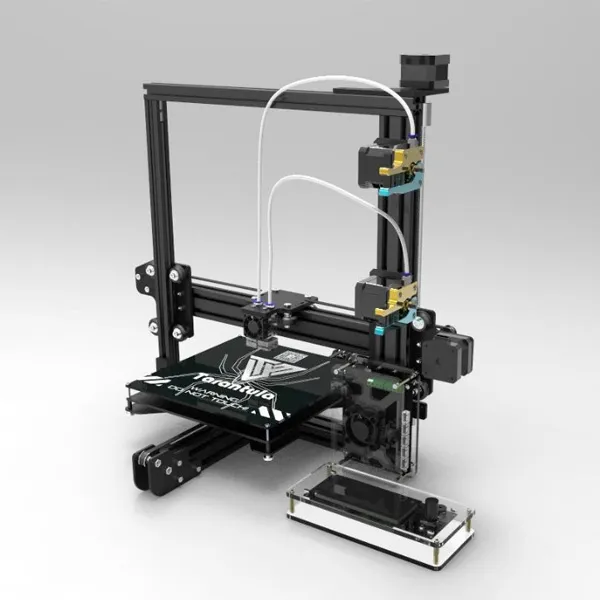
Understanding OctoPrint and Tevo Tarantula
Before diving into the setup, it’s important to understand the key players here OctoPrint and the Tevo Tarantula. OctoPrint is a web interface for 3D printers that allows you to control and monitor your prints remotely. The Tevo Tarantula, a popular budget 3D printer, can benefit immensely from this integration. This guide will help you through the complete setup process, ensuring a seamless experience that enhances your 3D printing workflow. OctoPrint provides a level of convenience and control that significantly upgrades the 3D printing experience, making it easier to manage prints, monitor progress, and troubleshoot issues. This integration also offers features such as remote access, allowing you to start, stop, and monitor prints from anywhere with an internet connection.
Why Use OctoPrint with Your Tevo Tarantula
Integrating OctoPrint with your Tevo Tarantula unlocks a host of benefits. The primary advantage is remote control and monitoring. Imagine starting a print from your office or checking its progress while away from home. OctoPrint also offers features like a webcam feed, allowing you to watch your prints in real-time. Another significant benefit is the ability to manage your print files more efficiently. You can upload G-code files directly to OctoPrint, eliminating the need to transfer files via SD cards repeatedly. OctoPrint also facilitates easier print job management, enabling you to queue multiple prints and manage your printing schedule effectively. Furthermore, it allows for detailed monitoring of print progress, providing insights into temperatures, print times, and layer completion, helping you to optimize your prints.
Preparing Your Tevo Tarantula for OctoPrint

Before you begin, ensure your Tevo Tarantula is in good working condition. Check that all mechanical components are correctly assembled and that the printer’s firmware is up to date. Also, verify that your printer’s electronics are functioning properly. Ensure the heated bed and extruder can reach their set temperatures. These preliminary checks are essential to ensure the successful integration of OctoPrint. Addressing these initial steps minimizes potential complications during the setup and operation of OctoPrint. Make sure to have the necessary tools, such as a micro USB cable to connect the printer to the Raspberry Pi running OctoPrint.
Updating Firmware Before OctoPrint
Updating your Tevo Tarantula’s firmware can significantly improve its performance and compatibility with OctoPrint. Newer firmware versions often include bug fixes and performance enhancements that contribute to more stable and reliable printing. Always check the latest firmware available from the manufacturer or trusted community sources. Firmware updates often fix glitches and improve overall printer functionality, resulting in a more reliable and predictable printing experience. For updating firmware, download the firmware file and follow the manufacturer’s instructions for flashing it to your printer’s control board using software like Arduino IDE.
Flashing the Bootloader (Optional)
Flashing a bootloader can simplify firmware updates, allowing you to upload new firmware without needing an ISP programmer. While not strictly required for OctoPrint, having a bootloader can streamline your workflow. The process involves using an ISP programmer to flash the bootloader onto your printer’s microcontroller. This allows you to upload firmware via USB without needing specialized hardware in the future. The ability to update firmware quickly and easily will be beneficial for integrating and maintaining OctoPrint.
Setting Up OctoPrint on Raspberry Pi

OctoPrint typically runs on a Raspberry Pi, a small, affordable computer. This setup provides a dedicated platform for OctoPrint, allowing it to run independently of your primary computer. Choose a Raspberry Pi model that meets your needs, with the Raspberry Pi 3 B+ or later recommended for optimal performance. A Raspberry Pi allows you to control and monitor your printer from anywhere on your network. The Raspberry Pi should have enough processing power and memory to manage the demands of the 3D printing process. Once the Raspberry Pi is set up, it can connect to your home network, enabling remote access and monitoring.
Raspberry Pi Configuration for OctoPrint
Begin by installing the Raspberry Pi OS on an SD card. You can use the Raspberry Pi Imager tool for this purpose. Ensure you enable SSH and configure your Wi-Fi settings during the setup process. After the initial setup, update your Raspberry Pi to the latest software packages. These steps will ensure that your Raspberry Pi is ready to support OctoPrint. Once the OS is installed, you should configure the network settings to allow communication with your local network and access to the internet, essential for OctoPrint’s functionalities.
Downloading and Flashing OctoPrint
OctoPrint can be installed using a variety of methods, but the most straightforward approach is to flash the OctoPi image onto your SD card. OctoPi is a pre-configured Raspberry Pi image with OctoPrint and all its dependencies pre-installed. This simplifies the setup process. Download the latest OctoPi image and use a tool like Etcher to flash it to your SD card. This will save time and ensure that all the required software is ready to go. After flashing, insert the SD card into your Raspberry Pi and boot it up.
Accessing OctoPrint for the First Time

After booting your Raspberry Pi with OctoPrint, find its IP address on your network. You can usually find this in your router’s settings or by using a network scanner. Open a web browser and enter the IP address followed by :5000 (e.g., 192.168.1.100:5000). This will take you to the OctoPrint interface. The first time you access OctoPrint, you’ll be prompted to set up an account and configure basic settings. Verify that you can access the OctoPrint interface from any device on your network. This confirms that your Raspberry Pi and OctoPrint are accessible and correctly configured.
Configuring OctoPrint Settings for Tevo Tarantula
Within OctoPrint, navigate to the settings menu. This is where you’ll configure your printer’s specific details. Start by setting up your printer profile. The correct printer profile is crucial for OctoPrint to communicate with your Tevo Tarantula. You will need to provide information about the printer’s bed size, axes, and extruder configuration. Incorrect settings can lead to printing errors or damage your printer. Configuring these settings ensures that OctoPrint knows the physical dimensions of your printer and how to control its movements.
Printer Profile Setup in OctoPrint
When setting up your printer profile, select the Tevo Tarantula from the list of pre-configured profiles if available, otherwise, you can manually enter the settings. Enter the bed size (X, Y dimensions) and the maximum printing height (Z dimension) accurately. Next, configure the axes, including the movement speeds for each axis. Correctly configuring these settings is important for precise control during printing. Provide accurate settings for your specific Tevo Tarantula model, including travel speeds and acceleration settings.
Bed Size, Axes and Extruder Settings

Carefully enter the bed dimensions (X, Y), typically 200x200mm for the Tevo Tarantula. The maximum print height (Z) should also be entered, usually around 180mm. Regarding the extruder, specify the nozzle diameter and the type of filament you plan to use. These settings are critical for the proper slicing and printing of your models. Correct settings ensure the printer moves correctly and the material extrudes at the proper rate. Accurate setup will help prevent common issues such as bed adhesion problems or incorrect layer heights.
Connecting OctoPrint to Your 3D Printer
Connect your Tevo Tarantula to the Raspberry Pi using a USB cable. In OctoPrint, go to the ‘Connection’ tab and select the correct serial port and baud rate. The baud rate is critical for proper communication, so ensure it matches your printer’s configuration. If the printer isn’t connecting, try different baud rates until you find the correct one. Once connected, the OctoPrint interface should display information about your printer, such as its current temperature and status. Ensure that the USB cable is securely connected to both your printer and the Raspberry Pi. The selected serial port and baud rate must match your printer’s settings.
Connecting OctoPrint to Your 3D Printer - Image
Ensure your Tevo Tarantula is powered on and connected to the Raspberry Pi via USB. Select the correct serial port and baud rate in OctoPrint’s connection settings. Common baud rates include 250000. Once connected, the OctoPrint interface should show the printer’s status and temperature readings, confirming a successful connection. If there are connection issues, check the USB cable, serial port selection, and baud rate settings. Often, a wrong baud rate is the culprit.
Testing the Connection

After establishing the connection, test it by sending simple commands to your printer, like moving the print head. You can use the ‘Control’ tab in OctoPrint to manually control the printer’s movements. Try moving the print head along the X, Y, and Z axes to verify that the printer responds correctly. These tests verify that OctoPrint can effectively communicate with your Tevo Tarantula. If the printer does not respond or the movements are incorrect, double-check your printer profile settings and connection parameters.
Loading and Printing Your First Model
Upload a G-code file to OctoPrint. You can either drag and drop the file into the interface or use the ‘Upload’ button. Before printing, you can preview the G-code file within OctoPrint. Previewing the G-code allows you to visualize the print path and detect any potential issues. Once the G-code is uploaded, click ‘Print’ to start the print. Monitor the print progress through OctoPrint’s interface, which provides real-time data on temperature, layer completion, and estimated time remaining. A successful first print confirms that your setup is working correctly.
Optimizing Your OctoPrint Setup
Fine-tuning your OctoPrint setup can significantly improve your 3D printing experience. One important adjustment is to calibrate your printer’s steps per mm, which will ensure accurate dimensions. Another crucial optimization is to configure your slicer settings to match your printer and filament. You might also want to adjust the print speed and temperature settings. Properly calibrating these settings will greatly impact the quality of your prints. Additionally, consider using a webcam with OctoPrint to monitor your prints remotely. The optimizations ensure your prints are accurate, efficient, and of the best possible quality. Fine-tuning your setup will improve your prints and also give you more control over the printing process.
Useful OctoPrint Plugins

OctoPrint offers a wide variety of plugins that can enhance its functionality. Some popular plugins include the ‘Print Job History’ plugin, which tracks your past prints, and the ‘Bed Level Visualizer’, which helps visualize your bed leveling. Other useful plugins include those for filament management, time-lapse photography, and remote control via mobile devices. These add-ons provide features that improve print quality, streamline your workflow, and make your 3D printing experience more enjoyable. Install plugins through OctoPrint’s plugin manager, and explore the available options to customize your OctoPrint setup to meet your specific needs.
Tips for Improving Print Quality
Achieving high-quality prints starts with proper bed leveling. Leveling your bed ensures that the first layer adheres correctly. Another critical factor is to ensure your printer’s belts are properly tensioned. Incorrect tensioning can lead to print inaccuracies. Furthermore, the correct nozzle temperature and bed temperature settings are essential for optimal layer adhesion. Consistent bed and nozzle temperatures are important for the filament melting and sticking properly. Always use quality filament, as this will greatly affect print quality. Moreover, you should calibrate your extruder to match the filament and nozzle used.
Troubleshooting Common Issues
Encountering issues is common when working with 3D printers. Fortunately, most problems have straightforward solutions. Some of the frequent issues include problems connecting to OctoPrint, print quality defects, and print failures. To address these challenges, you need to use effective troubleshooting techniques. This section will focus on common problems and provide solutions. By understanding these techniques, you can minimize downtime and optimize your printing process.
OctoPrint Not Connecting
If OctoPrint is not connecting to your Tevo Tarantula, begin by checking the USB cable and the printer’s power. Ensure that the USB cable is securely connected to both the Raspberry Pi and the printer. Verify that your printer is powered on. Then, confirm that you’ve selected the correct serial port and baud rate in OctoPrint’s connection settings. Often, the serial port or baud rate is incorrectly configured, preventing communication. Double-check your settings against your printer’s specifications. Restarting the printer and Raspberry Pi can also sometimes resolve connection issues.
Print Quality Problems
Print quality problems can arise due to multiple factors. Common issues include poor bed adhesion, under-extrusion, over-extrusion, and layer shifting. To troubleshoot these problems, verify your bed leveling, nozzle temperature, and print speed. Correcting these factors will improve adhesion and layer quality. Adjusting your print speed and temperature settings may improve layer quality. Properly configuring your slicer settings and calibrating your extruder can also resolve these issues. By methodically addressing each potential cause, you can identify the root problem and improve your print quality.
Expanding OctoPrint Functionality
After setting up the basics, you can expand OctoPrint’s functionality to enhance your 3D printing experience. Integrating a webcam is one of the most popular upgrades. This will provide real-time monitoring of your prints. Also, consider setting up remote access to OctoPrint, allowing you to control and monitor prints from anywhere with an internet connection. This will boost your ability to monitor your printer operations and fix issues remotely. These enhancements will allow you to monitor prints, view print status, and interact with your printer from anywhere.
Remote Monitoring and Control
Remote monitoring and control enable you to supervise your prints from anywhere. You can remotely start, stop, and monitor prints through your smartphone or web browser. You can also receive notifications about print progress and issues. To set up remote access, you can use services like OctoPrint Anywhere or set up a VPN. Enable remote access so that you can monitor your printer from wherever you are. This will allow you to check on the progress of your prints or immediately take action when problems occur.
Advanced OctoPrint Configurations
For advanced users, there are several options for further customizing OctoPrint. You can use scripts to automate tasks such as preheating the bed or starting a print. You can also create custom G-code scripts to personalize your printing process. Other advanced configurations include setting up OctoPrint for multiple printers. OctoPrint’s flexibility makes it possible to adapt the software to your specific needs. Explore these configurations to optimize your workflow. For users looking to integrate OctoPrint into more complex systems, these advanced features offer a great deal of flexibility.
Conclusion
Setting up OctoPrint on your Tevo Tarantula can greatly improve your 3D printing experience. This guide has provided a step-by-step approach, from the initial setup to advanced customizations. By following these tips, you can harness the power of OctoPrint to control and monitor your prints remotely. Remember to regularly update your firmware and plugins. With these improvements, your 3D printing projects will become more efficient and successful. With the OctoPrint setup, you can expect smoother and more reliable prints.