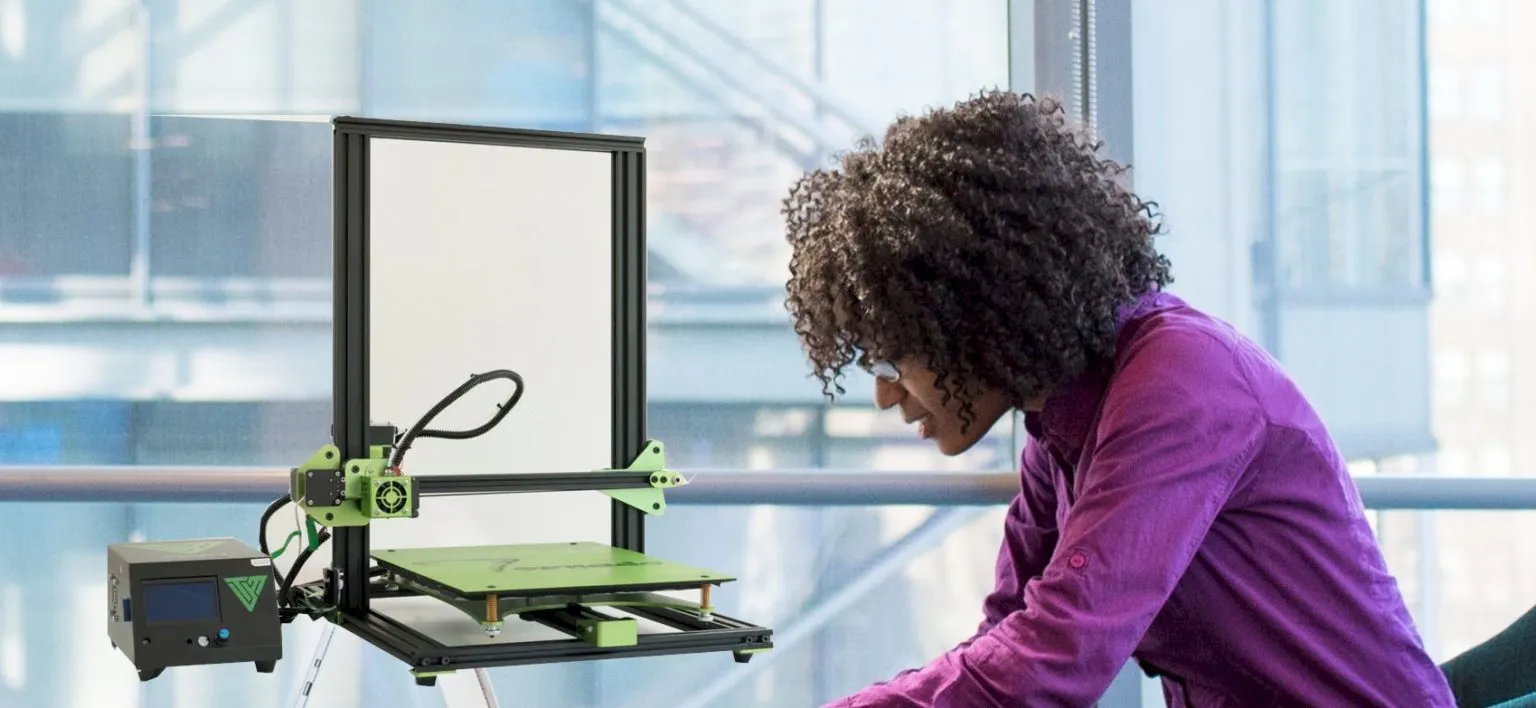
Tevo Tarantula Slicer Setup How To Guide
Setting up your Tevo Tarantula 3D printer with the right slicer software is crucial for achieving high-quality prints. The slicer translates your 3D model into instructions the printer can understand, controlling every aspect of the printing process, from layer height and temperature to print speed and support structures. This guide will walk you through the essential steps to set up and optimize your slicer settings for the Tevo Tarantula, ensuring you get the best possible results from your 3D printing projects. We will cover popular slicer options, setup procedures for both Cura and Simplify3D, and essential settings for optimal printing. By following these steps, you can enhance the performance and precision of your Tevo Tarantula, opening up a world of possibilities for your 3D printing endeavors.
Choosing the Right Slicer Software
Selecting the appropriate slicer software is the first step toward successful 3D printing with your Tevo Tarantula. The slicer you choose significantly impacts print quality, ease of use, and the range of features available for optimizing your prints. Several slicers are compatible with the Tevo Tarantula, each offering different strengths and weaknesses. Consider factors like your experience level, the complexity of your projects, and the features you need most when making your decision. Experimenting with different slicers can help you discover which one best suits your workflow and printing requirements.
Popular Slicer Options

While several slicers are available, two of the most popular and highly recommended options for the Tevo Tarantula are Cura and Simplify3D. Cura is a free, open-source software known for its user-friendly interface, extensive settings options, and large community support. Simplify3D, on the other hand, is a premium slicer that offers advanced features, excellent print quality, and superior control over the printing process. Both slicers are capable of producing excellent prints with the Tevo Tarantula, but they each have unique advantages. The choice between them often depends on the user’s budget, experience level, and specific requirements.
Cura Setup for Tevo Tarantula
Cura is a great choice for Tevo Tarantula users, providing a balance of ease of use and powerful features. Setting up Cura for your printer involves a few key steps, including installation, printer configuration, and profile customization. Following these steps will ensure you have the software configured to communicate properly with your 3D printer, and that the printed object’s quality is optimized.
Installing Cura and Initial Configuration
Download the latest version of Cura from the official Ultimaker website. Install the software on your computer, following the on-screen prompts. During the initial setup, you will be asked to add your printer. If the Tevo Tarantula is listed in the printer options, select it. If it is not, you may need to select a similar printer or manually configure the printer settings. Once the printer is added, Cura will be ready to use. It’s highly recommended to regularly update Cura to the latest version to ensure compatibility and access to new features and improvements.
Configuring Printer Settings in Cura

After adding your Tevo Tarantula, you will need to configure the printer settings within Cura. These settings determine the printer’s physical parameters and capabilities. Begin by setting the print bed size to match the dimensions of your Tevo Tarantula’s build plate. Enter the correct nozzle diameter, typically 0.4mm, and ensure that the print head’s movement limits are properly configured. You may need to adjust the printer’s origin position and ensure the correct firmware is selected. Correctly configuring these initial settings is crucial for accurate printing and for preventing the printer from encountering physical limitations.
Simplify3D Setup for Tevo Tarantula
Simplify3D offers a more advanced slicing experience, with greater control over print settings and often resulting in higher-quality prints. Setting up Simplify3D for your Tevo Tarantula requires a few extra steps compared to Cura, but the resulting print quality can be well worth the effort.
Importing Printer Profile
Simplify3D does not have a built-in profile for the Tevo Tarantula. Users will need to create a custom profile or import one created by the community. Search for a pre-configured profile online, or start by creating a new profile and entering the printer’s physical dimensions. Ensure to specify the correct nozzle diameter and print bed size. Once you have the printer profile set up, you can start adjusting print settings to suit your needs.
Adjusting Print Settings in Simplify3D

Simplify3D gives you extensive control over print settings. Start by configuring the layer height, print speed, and temperature settings. Then, focus on optimizing settings like retraction, bed adhesion, and support structures. Simplify3D’s advanced features, such as manual support placement and variable layer height, give you even more control over the printing process. Experiment with these settings to achieve the best results for different filament types and model complexities. Remember to save your profiles for future use.
Slicer Settings Optimization
Once you have your slicer software configured, it’s time to delve into optimizing the print settings for your Tevo Tarantula. The key to achieving high-quality prints lies in fine-tuning several crucial parameters. By understanding these settings and how they affect the printing process, you can significantly improve the print quality, reduce printing errors, and expand your 3D printing capabilities.
Understanding Key Slicer Settings
Several settings in your slicer software play a crucial role in determining the quality and success of your prints. These include the layer height, print speed, print temperature, retraction settings, and bed adhesion settings. Each setting affects different aspects of the printing process. Understanding these key settings will enable you to troubleshoot problems and improve overall print quality. Experimenting with different settings to find the optimal configuration for your models and materials is vital to the process.
Layer Height, Speed, and Temperature

Layer height determines the thickness of each layer of plastic deposited by the printer. Lower layer heights result in smoother surfaces and greater detail, but longer printing times. Print speed affects the rate at which the printer moves. Higher speeds can reduce print times, but they can also lead to lower print quality if the printer cannot keep up. The print temperature is critical for proper filament melting and extrusion. Use the temperature range recommended by your filament manufacturer. Experiment with different temperature settings to see how they impact print quality. These settings directly impact the level of detail and the overall smoothness of your prints.
Retraction Settings
Retraction settings control the movement of the filament when the printer is moving between different parts of the print. Properly configured retraction settings reduce stringing and oozing, which can ruin the print’s appearance. The retraction distance and speed are the primary settings to adjust. If you notice stringing or blobs on your prints, try increasing the retraction distance or speed. Conversely, if you see gaps or underextrusion, reduce the retraction settings. Tuning your retraction settings is essential for producing clean, crisp prints.
Bed Adhesion and First Layer Settings
Bed adhesion is critical for ensuring the print adheres to the print bed. Poor bed adhesion can lead to warping, detachment, and print failures. Slicer settings related to the first layer, such as the first layer height, print speed, and temperature, significantly affect bed adhesion. Increasing the bed temperature, using a brim or raft, or applying adhesive to the print bed can help improve adhesion. Experiment with these settings and techniques to prevent prints from lifting or warping.
Troubleshooting Common Slicing Issues

Even with optimal settings, you may occasionally encounter issues with your prints. Troubleshooting common problems requires careful observation and a systematic approach. Here are some of the most common issues and how to resolve them.
Print Not Sticking to the Bed
If your print does not adhere to the bed, it will likely detach during printing, resulting in a failed print. Ensure that your print bed is properly leveled, and the bed surface is clean. Increasing the bed temperature and using a brim or raft can improve adhesion. Applying a thin layer of adhesive, such as glue stick or hairspray, to the print bed can also help. It’s important to experiment with different approaches to optimize the adhesion based on the type of filament.
Over-Extrusion and Under-Extrusion
Over-extrusion occurs when too much filament is extruded, leading to blobs, zits, and a generally messy print. Under-extrusion, the opposite problem, results in weak layers, gaps, and a lack of detail. Calibrating your extruder and adjusting the flow rate in your slicer settings can resolve these issues. Start by calibrating your extruder steps per mm. Adjust the flow rate slightly, increasing it for under-extrusion and decreasing it for over-extrusion. Fine-tuning the extrusion settings can significantly improve the print quality.
Warping and Layer Shifting

Warping occurs when the corners or edges of your print curl up from the bed. Layer shifting happens when the print head shifts position during printing, resulting in misalignment. Controlling the bed and ambient temperatures is key to reducing warping, and using an enclosure can help. For layer shifting, ensure your belts are properly tightened and the printer’s frame is stable. Check for obstructions in the printer’s movement and that the stepper motor drivers are functioning correctly. These problems are often a sign of mechanical issues that need to be addressed.
Advanced Slicing Techniques
Once you have mastered the basics of slicing, you can explore more advanced techniques to improve your prints. These techniques enable you to tackle complex models, use specialized materials, and create intricate designs. Understanding these advanced methods can significantly enhance your 3D printing capabilities and allow you to achieve exceptional results.
Using Supports Effectively
Supports are essential for printing models with overhangs or complex geometries. Choosing the right support settings is critical for achieving a successful print. The key settings to adjust include the support structure type, density, and interface distance. Consider using tree supports for complex organic models, and experiment with the support density to ensure easy removal without damaging the printed part. Careful placement of supports minimizes the amount of material used and the difficulty of removing the support structure.
Generating Rafts and Brims
Rafts and brims are used to improve bed adhesion and reduce warping. A raft is a separate layer that is printed under the entire model, providing a larger surface area for the print to adhere to. A brim is a single layer printed around the base of the model, increasing its contact with the bed. Choose between brims and rafts based on the size and shape of your model, and the filament used. Rafts are especially useful for ABS and other materials prone to warping. Experimenting with these options will ensure the model’s base stays securely anchored to the print bed.
Slicing for Different Filament Types
Different filament types, such as PLA, ABS, PETG, and TPU, have unique printing characteristics. Each filament requires specific slicer settings. PLA is generally easy to print, requiring low bed temperatures. ABS needs a heated bed and enclosure to prevent warping. PETG offers a good balance of strength and flexibility. TPU is a flexible filament that requires slower print speeds and specific settings. Refer to the filament manufacturer’s recommendations and fine-tune your settings for each material to achieve the best results.